Receipts & Payments
Use Receipts & Payments when you want to review your current plan, download invoices, and check credit additions linked to your account. In AIandMe, this page opens as Billing & Payments.
Download invoice PDFs here after you sign in. AIandMe Support does not send invoice PDFs as email attachments. An email telling you that an invoice is ready is a notification and does not contain the invoice PDF.
-
Open Receipts & Payments
Open Learning Insights and select Receipts & Payments.
The page opens as Billing & Payments.
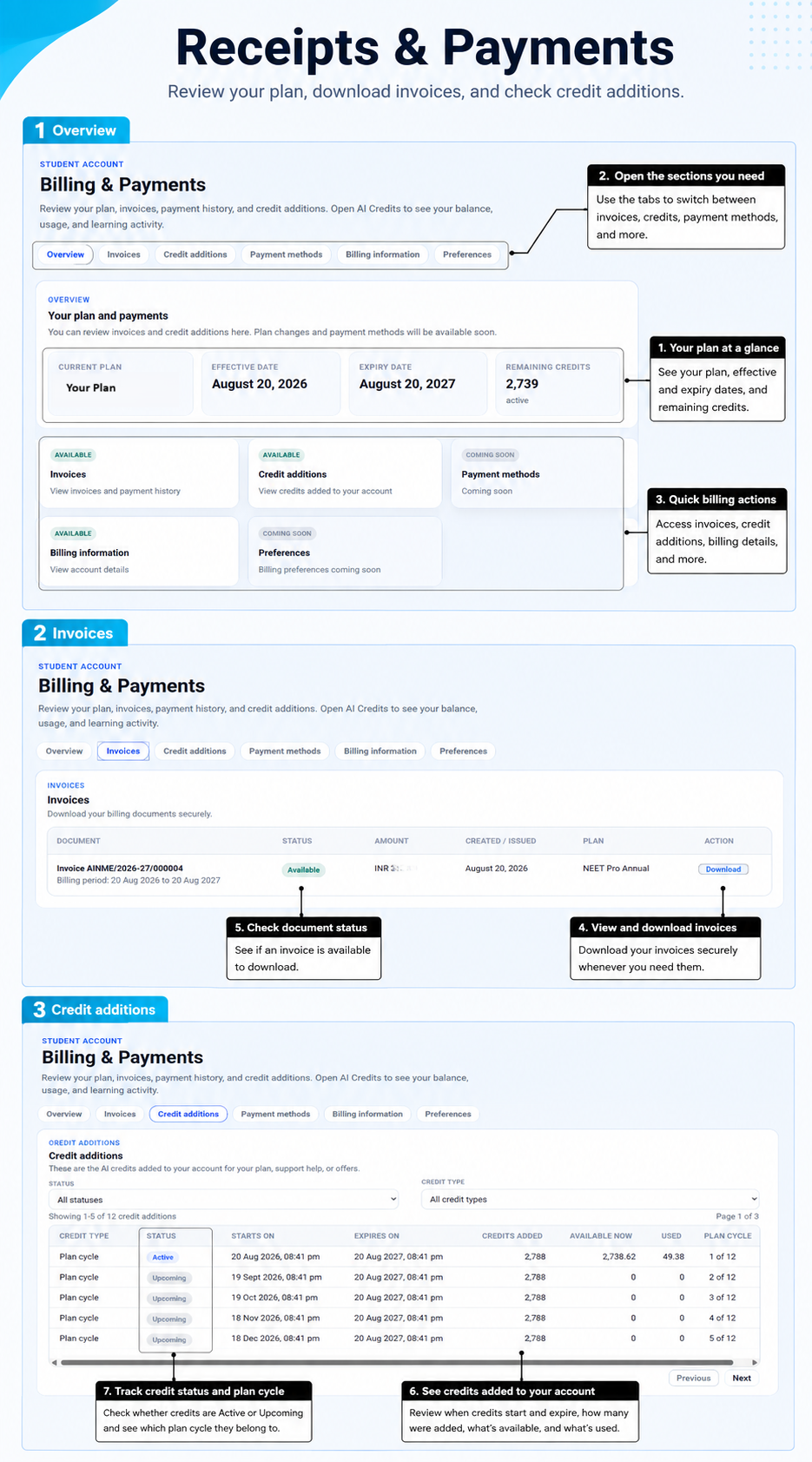
Use the tabs to move between Overview, Invoices, Credit additions, Billing information, and other sections that may become available later.
-
Review your plan
In Overview, use Your plan and payments to review the information linked to your current subscription.
Depending on your account, this area can show details such as:
- your current plan;
- effective date;
- expiry date; and
- remaining credits.
Use the live page for your current plan status and dates.
-
Open the section you need
The top tabs help you move to the part of Billing & Payments you want to use.
For most students, the main sections are:
- Invoices for billing documents; and
- Credit additions for credits added to your account.
Some other sections may be marked Coming soon.
-
View and download invoices
Open Invoices when you want to download a billing document.
The Invoices list can show details such as:
- document name;
- status;
- created or issued date;
- plan; and
- available action.
When a document is ready, use Download to save it securely.
-
Check document status
Before trying to download a document, check the status shown in the list.
A document may be available immediately, or it may still be preparing.
If your invoice is not ready yet, check again later in Receipts & Payments.
-
See credit additions
Open Credit additions to review credits added to your account.
This section can show information such as:
- credit type;
- status;
- start and expiry dates;
- credits added;
- credits available now;
- credits used; and
- plan cycle.
Use this section when you want to understand where your credits came from.
-
Track credit status and plan cycle
In Credit additions, check whether a credit entry is currently Active or Upcoming.
You can also see which plan cycle the credit entry belongs to.
This helps you understand what is available now and what belongs to a later cycle.
Can Support email my invoice?
No. AIandMe Support does not send invoice PDFs as email attachments. Sign in to AIandMe, open Learning Insights, select Receipts & Payments, open Invoices in Billing & Payments, and select Download when your invoice is ready.
You may receive a separate email telling you that your invoice is ready. The email is a notification and does not contain the invoice PDF.
What is the difference between Credit additions and AI Credits?
Use Credit additions in Receipts & Payments to see where credits were added from, such as your plan or another allowed addition.
Use AI Credits when you want to check your current balance, usage, and learning activity.
Good to know
Some sections in Billing & Payments may show Coming soon.
That does not affect the sections already available to you, such as Overview, Invoices, and Credit additions.
What happens next
After reviewing your documents or credits, you can return to:
- AI Credits to check current balance and usage; or
- AI Study Room overview to continue learning.