Chapter Workspace
The Chapter Workspace is the main AI Study Room screen for one chapter. It keeps your learning content, Study Plan, practice and AI help together.
-
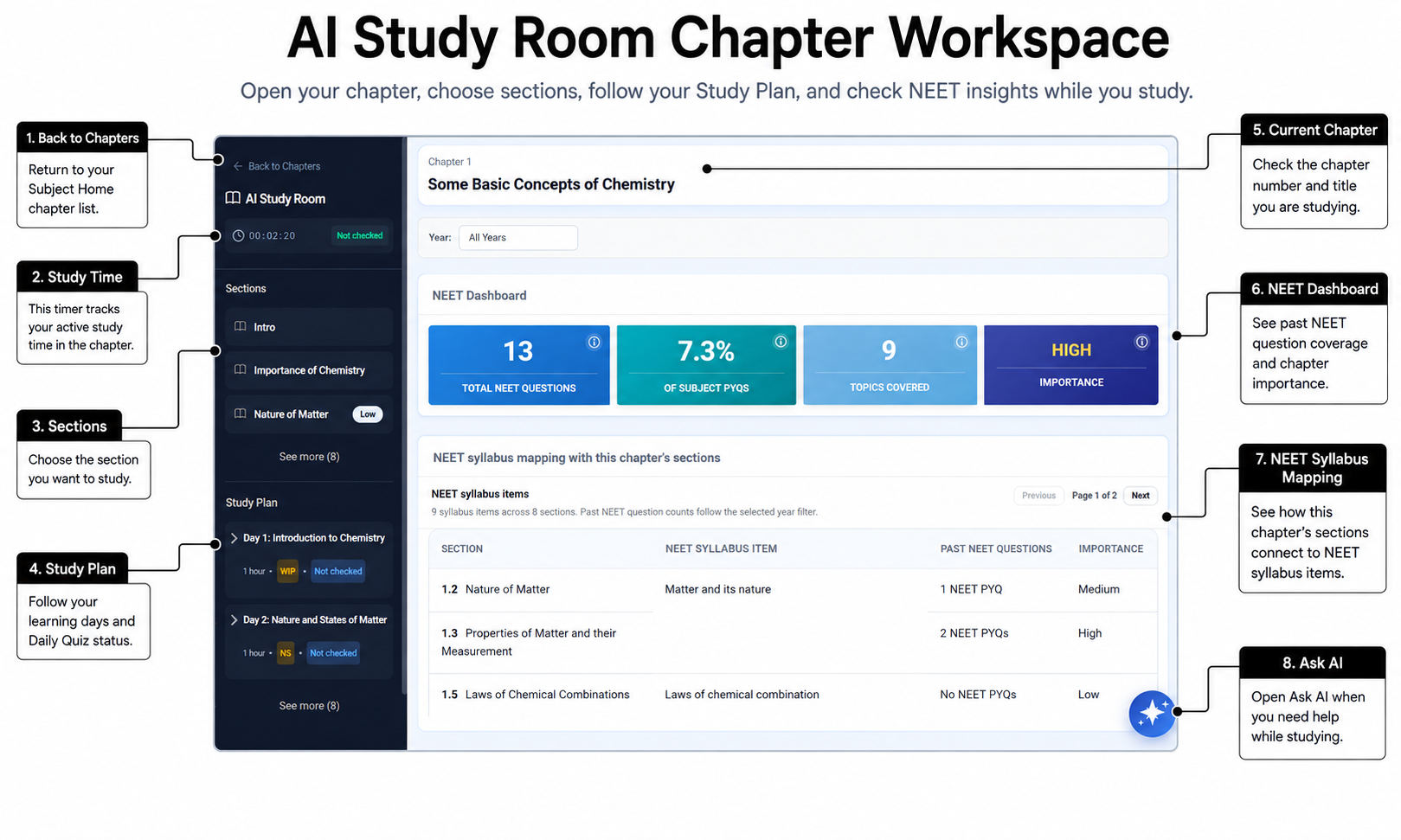
Know which chapter you are studying
The chapter title identifies the chapter currently open in AI Study Room.
Select Back to Chapters when you want to return to the Subject Home and choose another chapter.
Returning to the chapter list does not remove the Study Plan or completed days already saved for this chapter.
-
Use the left side
The left side contains three main groups:
- Sections lists the learning sections in the chapter.
- Study Plan breaks the chapter into learning days.
- Ask AI History lets you reopen earlier successful questions and answers from this chapter.
Open Chapter Sections, Study Plan or Ask AI for more detail.
These groups help you move between learning content, your plan and earlier AI help without leaving the chapter.
-
Understand the top information
AIandMe automatically tracks the active time you spend studying the chapter. You do not need to start or stop the timer yourself.
Your study time is used in Learning Insights, where you can see how much time you are spending on your learning.
Chapter competency shows the level indicated by your evaluated Daily Quizzes and Chapter-level Tests. Not checked means there is no evaluated level to show yet.
Study time, competency and chapter progress mean different things:
- Study time shows how long you have been actively studying.
- Chapter progress shows how many Study Plan days are Done.
- Competency estimates your current understanding from evaluated quizzes and tests.
Spending time in the chapter does not by itself complete a Study Plan day. The timer also does not count down from the suggested time in your Study Plan.
-
Use the main learning area
Before you open a section, the main area can show chapter information. For students with applicable NEET access, this may include past-question and syllabus information.
After you choose a section or part, the main area gives you Revise, Read, Practice Tests and Ask AI. AIandMe also checks which lessons can use a helpful Interactive Visual. You can keep studying while Finding interactive activities… is shown.
A small sliders icon marks a lesson where this option is available. Select that lesson to see the Interactive Visuals tab. If AIandMe cannot retrieve the check status, Check again only refreshes that status and does not use AI Credits. If no check has started, Find activities deliberately starts one and uses AI Credits. If the lesson or activity-check criteria have changed, Recheck activities starts a new check only when you select it and uses AI Credits. Try again appears only after a check has failed and starts a new availability check, which also uses AI Credits. Revise and Read show learning content for the selected section. Practice Tests checks your understanding. Ask AI gives you a place to ask a question while you study. In Interactive Visuals, select Create visual once to start an eligible activity. AI Credits apply explains the credit use. A circular cyan illustration stays in the same area while the activity is prepared, and the saved visual opens automatically when ready. On later visits it opens automatically without a new AI request. NEET Plus includes 10 generation requests each month and NEET Pro includes 20. If creation is unavailable, the screen offers details based on the current plan or allowance rather than an unusable Create button. Finding or rechecking activities uses AI Credits but does not use a generation request. Opening a saved visual and using its controls use neither a generation request nor new AI Credits. A saved visual remains available when a new activity check is needed or when that lesson no longer qualifies.
Return to the AI Study Room overview.