Testing Insights
Testing Insights helps you understand patterns across your completed Practice With AI tests. It brings your recent scores, accuracy, pacing, weak areas, and questions to review together so you can decide what to work on next.
Testing Insights is available when your plan includes Practice With AI. Your insights begin to appear after you have completed Practice With AI tests with results.
-
Open Testing Insights
Open Learning Insights, then choose Testing Insights.
This page looks at your Practice With AI testing activity. It is different from the main Learning Insights overview, which looks at your learning progress from AI Study Room.
If you have not completed a Practice With AI test yet, there may not be enough testing information to show.
-
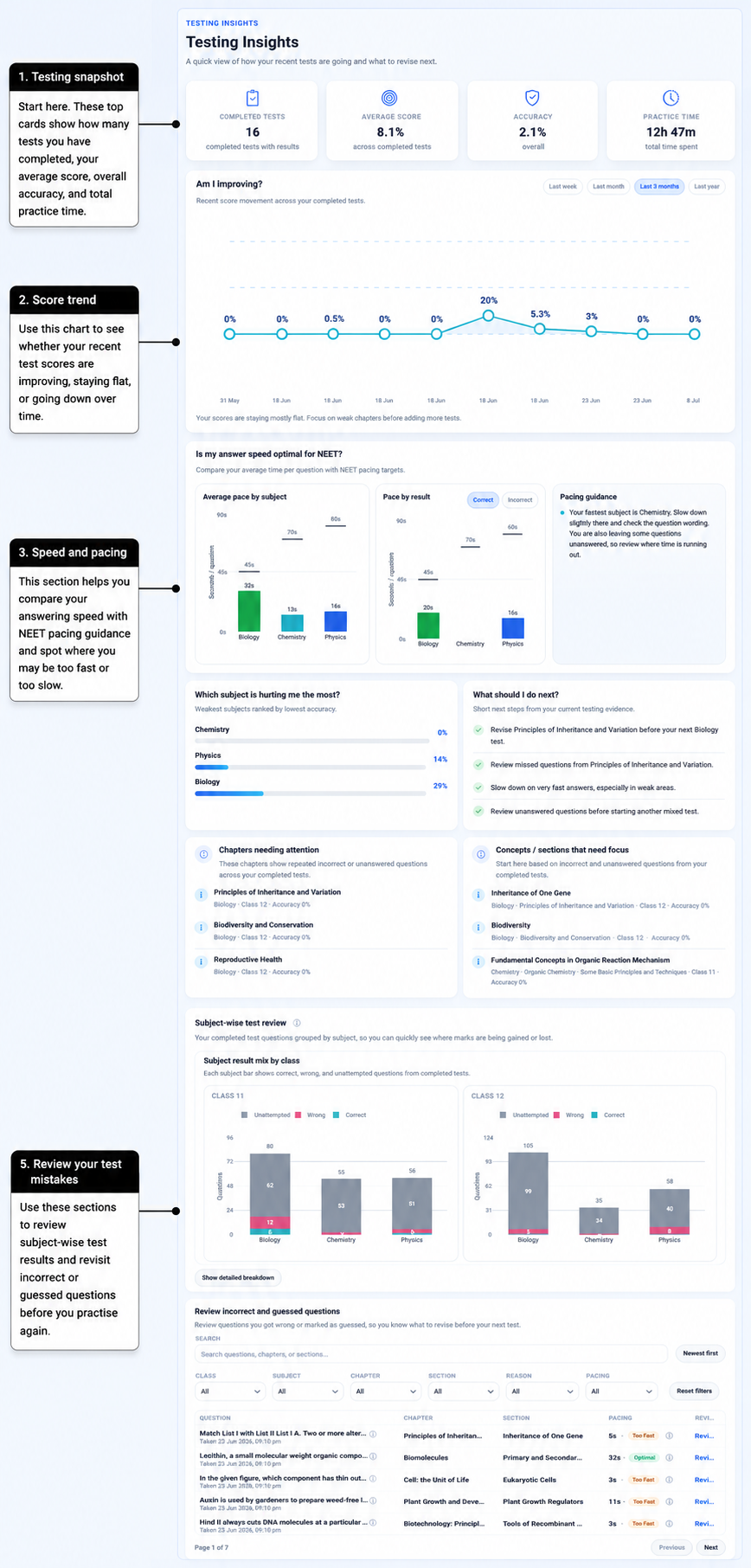
Start with your testing snapshot
The cards at the top give you a quick picture of your completed Practice With AI tests:
- Completed Tests shows how many completed tests have results available.
- Average Score shows your average score across those completed tests.
- Accuracy shows how often your attempted answers were correct overall.
- Practice Time shows the recorded time spent across your completed tests.
These numbers are useful as a starting point, but they do not tell the whole story. Look at your score movement, pacing, weak areas, and questions to review as well.
-
See how your scores are moving
Am I improving? shows how your recent test scores have changed over time.
You can look at different periods such as Last week, Last month, Last 3 months, or Last year.
AIandMe may describe the pattern as improving, dropping, moving up and down, or staying mostly flat. If there are not enough tests in the period you selected, try a wider time window.
Look at several tests together rather than judging your progress from one result. A single high or low score does not prove that your overall testing performance has permanently changed.
-
Check your answering pace
Is my answer speed optimal for NEET? helps you compare your answering time with AIandMe's NEET pacing guidance for Biology, Chemistry, and Physics when enough timed questions are available.
Average pace by subject shows how long you are taking per question in each subject.
Pace by result lets you compare the pace of your Correct and Incorrect answers.
At question level, AIandMe can show pacing guidance such as:
- Too fast — the answer may have been completed unusually quickly, so it can be worth checking whether you rushed or guessed.
- Optimal — the answer was within AIandMe's suggested time range.
- Slow — the answer took longer than AIandMe's suggested time range, so reviewing your method may help.
Select the info icon beside a pacing label when you want to understand the current pacing guidance.
Faster is not always better. The aim is to give yourself enough time to read, think, and solve while still managing the full test.
-
Find subjects and chapters that need attention
Which subject is hurting me the most? highlights subjects where your completed-test accuracy is currently lower.
Chapters needing attention looks for chapter-level patterns in incorrect or unanswered questions.
When AIandMe has enough question information, Concepts / sections that need focus can narrow this further to a particular section inside a chapter.
AIandMe waits until there are enough questions before showing a chapter or section as an area needing attention. This means a chapter or section may not appear immediately after only a small amount of testing.
These are areas to look at more closely. They do not mean that you are permanently weak in that subject or chapter.
If a chapter needs more work, open AI Study Room to continue studying or revising it.
-
Use the suggested next steps
What should I do next? uses your recent test results to suggest a few practical next steps.
Depending on your results, it may suggest actions such as:
- revising a chapter before your next test;
- reviewing questions you missed;
- slowing down where very fast answers are leading to mistakes;
- looking again at unanswered questions; or
- taking a short chapter test after revision.
Treat these as a useful next step from the information currently available. As you complete more tests, the suggestions can change with your testing pattern.
-
Compare your subjects
Subject-wise test review groups questions from your completed tests by subject.
Subject result mix by class gives you a quick visual view of Correct, Wrong, and Unattempted questions.
Choose Show detailed breakdown when you want to see more information for each subject, including:
- questions seen;
- attempted questions;
- correct, wrong, and unattempted questions;
- accuracy;
- attempt rate; and
- average time.
When question details are available, choose View questions to see the recent questions behind that subject result. You can see the test, question, result, time and pacing. Open the Practice Test Result when you want to understand one completed test in detail.
-
Review incorrect and guessed questions
Review incorrect and guessed questions brings together questions that deserve another look.
A question can appear here because:
- you answered it incorrectly; or
- you marked it as Guessed or unsure while taking the test.
A guessed question can still be worth reviewing even if your answer happened to be correct. The purpose is to find places where your reasoning or confidence may need another look.
After reviewing an incorrect or Guessed question, you can set up a Revision test to practise it again when it is available for revision.
You can search the review list by question, chapter, or section. You can also narrow it using available filters for Class, Subject, Chapter, Section, Reason, and Pacing.
Use Newest first or Oldest first to change the order.
Each row can show the question, chapter, section, time and pacing. Choose Open review when you want to return to the completed-test review.
Use Testing Insights as a review cycle
Testing Insights is most useful when you use the patterns to decide what to revise or practise next.
A simple cycle is:
Take a Practice With AI test → review the pattern → revisit weak areas → review incorrect or guessed questions → practise again.
Use Practice With AI when you want to create or continue practice tests.
Use the Learning Insights overview when you want to understand your AI Study Room progress, learning levels, study time, Daily Quizzes, and Chapter-level Tests.
When included in your plan, NEET Stats provides a separate view of NEET chapter priorities and progress.