Inside Your Practice Test
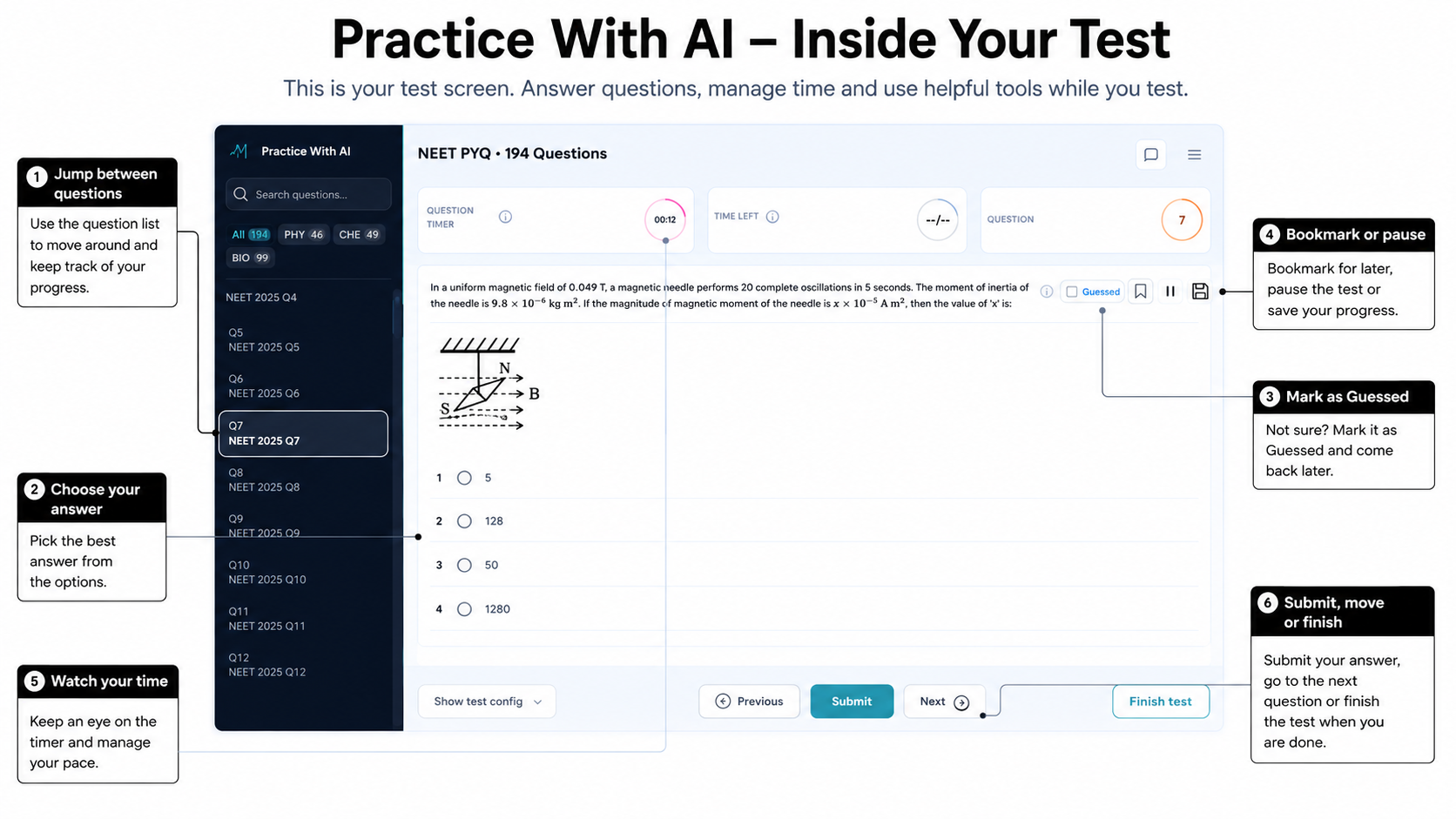
This is where you answer your Practice Test questions. You can move between questions, mark ones you want to return to, keep track of time, pause, and finish when you are ready.
AIandMe saves your answers, Guessed marks and question timing. Your result can then show what happened during the test, not just your score.
-
Open a Ready test
Open Practice With AI and look under Ready.
Select Start test for a new test. Select Continue test when you have already begun, or Resume test when the test is paused.
-
Move between questions
Use Previous and Next, or select a question from the question list.
The question list can be searched and filtered by subject. When you use Bookmark or Guessed, matching filters also help you return to those questions during the test.
You can select or change an answer while the question remains open. After you select Submit, you cannot change that answer.
-
Use Bookmark and Guessed for different reasons
Use Bookmark when you simply want to come back to a question before finishing the test.
Mark Guessed when you answered but were not confident. It does not reduce your marks. It simply records that you were unsure.
Guessed remains useful after the test. These questions can appear in your result and may come back in a later Revision test. A Bookmark only helps you find a question during the current test; it is not a separate group in your result.
-
Keep track of time
The question timer records how long you actively spend on each question. Your result can later help you see where you took longer or may have rushed.
The timer ring gives you a guide based on the subject. It can reach 100%, but AIandMe continues recording your time if you take longer.
Exam-based tests also show an overall countdown for the test. AI-Guided tests do not use the overall countdown.
You can review this timing later in Your pacing in your Practice Test Result.
-
Know when feedback appears
In an AI-Guided test, select Submit to check the answer while staying on the same question. You cannot change the answer after submitting it, and the feedback panel shows the result and available feedback.
In an Exam-based test, you cannot change an answer after submitting it, but you do not see immediate feedback. You review the checked answers after the test is finished and the result is ready.
When it is available for a checked answer, Explain With AI can help you understand the question and the answer you chose.
-
Pause or save and exit
Select Pause test to stop the timers and pause the test. Select Resume test before answering, moving to another question or finishing.
Use the save control when you want to leave. After confirmation, AIandMe saves the current answer, pauses the test and returns you to Ready. For an Exam-based test, the overall countdown stays stopped until you resume.
-
Finish the test
Select Finish test and confirm when you are ready to submit your answers.
AIandMe saves your current answer and sends the test for grading. Questions you did not answer are saved as unanswered. The confirmation does not list them separately, so check the question list before finishing if you want to answer more.
The test then moves to Grading while AIandMe prepares your result. See Grading for what happens next.
When the result is ready, select View result and use Practice Test Result to review your test.