Get Started
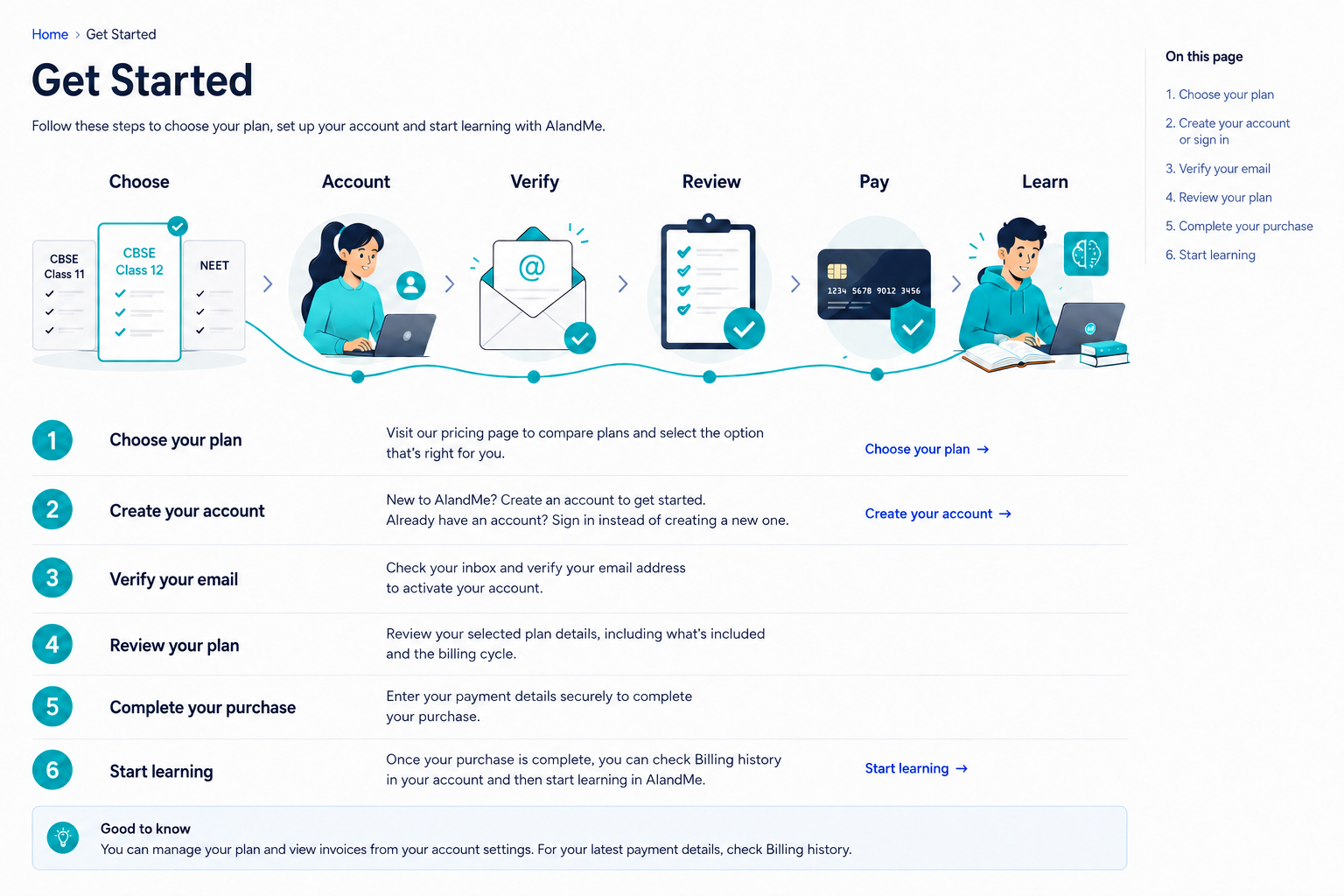
Follow these steps to choose your plan, set up your account and start learning with AIandMe.
-
Choose your plan
Open Pricing and compare the available plans and billing options. Choose the option that matches what you want to study and how you want to pay. You can review the current details on Pricing before you continue. Read what the plan covers so that your choice fits your learning goal.
If you are already signed in and do not have a current active plan, you can continue directly toward Checkout. If you are not signed in, AIandMe shows Continue your purchase before returning you to the purchase journey.
Which plan is right for me?
Plan Best for Subjects CBSE Class 11 Students studying CBSE Science in Class 11 Mathematics, Physics, Chemistry and Biology CBSE Class 12 Students studying CBSE Science in Class 12 Mathematics, Physics, Chemistry and Biology NEET Students preparing for NEET across Classes 11 and 12 Physics, Chemistry and Biology After choosing what you are studying, choose how you would like to pay. AIandMe offers options to pay in full or pay in instalments. The payment options available for your plan are shown on Pricing.
Compare the payment options shown on Pricing and choose the one that works best for you. The current price and any savings for each available option are shown there.
-
Create your account or sign in
On Continue your purchase, choose Continue with Google, Create an account, or I already have an account. Google sign-in returns you to the plan and billing option you selected. If you use Create an account, make sure you can open the email for the account because you will need it for verification.
Registration asks for your account, contact and location information, including your name, email, phone number and Indian address. Gender is optional. When you begin from Pricing, AIandMe keeps your selected plan and billing option ready while you move through the account flow.
-
Verify your email
After you register with email and password, AIandMe sends a verification email to the address you provided. Open that email and use the verification link inside it. The link belongs to your account, so use the email sent to you rather than a link shared by someone else. Google sign-in uses Google's verified email and does not send this additional AIandMe verification email.
If you began from Pricing and successfully verify the new account, AIandMe signs you in and continues automatically to Checkout for the plan and billing option you selected. If you created the account outside the Pricing purchase journey, verification finishes first and you then sign in normally.
-
Review your plan
Before payment, AIandMe shows the purchase information for your selected plan. Check the plan, billing option, duration where applicable and the amount shown. Checkout may prefill billing details from your Profile. You can edit those details for this purchase before continuing, but the billing edits do not change your Profile. Your account email stays locked and the country stays India. If AIandMe does not yet have a student-use statement for the account, choose the statement that applies. Also review the applicable terms shown on the page.
If something is not right, return to Pricing and choose again. The review page is reached by continuing from your plan and account flow, so there is no separate review link to open from Help.
-
Complete your purchase
Continue from the review page when the information is correct. Follow the secure payment steps shown there. Keep the payment window open until the process finishes and AIandMe confirms that your purchase and access are ready. If confirmation takes a moment, wait for the status to update rather than starting the payment again.
There is no separate Pay button in Help because payment begins only after you have selected and reviewed a plan.
-
Start learning
Open AIandMe after your access is ready. From the application home, enter AI Study Room, choose the applicable class and subject, then choose a chapter to begin learning.
Starting from the application home keeps you in the normal learning flow and lets you choose the right study context.